Fake Specular

Creates a shiny specular highlight on a mesh by layering a second transparent, environment-mapped mesh on top of the original.
Steps
1. Duplicate the mesh
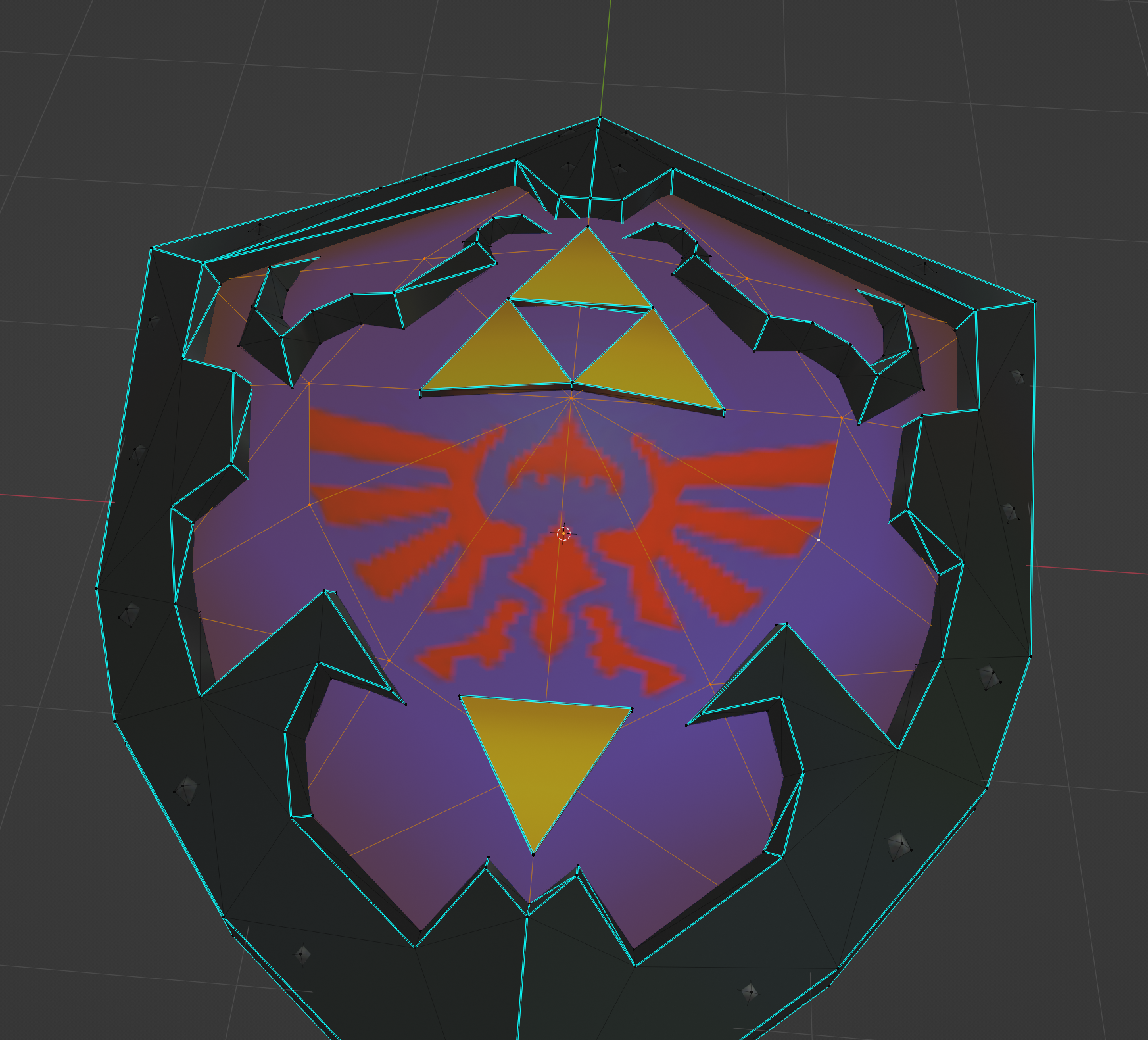
In edit mode, select the mesh you want a shine on and duplicate it. Do not move the duplicate.
2. Assign a new material
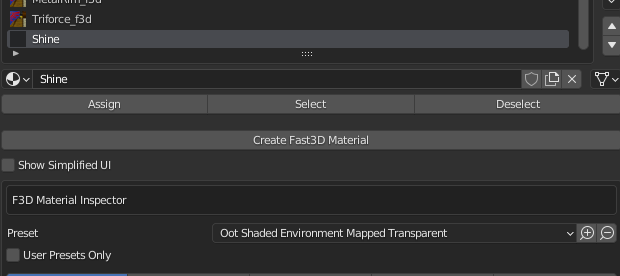
Create a new material, select the Environment Mapped Transparent preset, and assign it to the duplicated mesh. Import your shine texture — textures with an alpha channel work best.
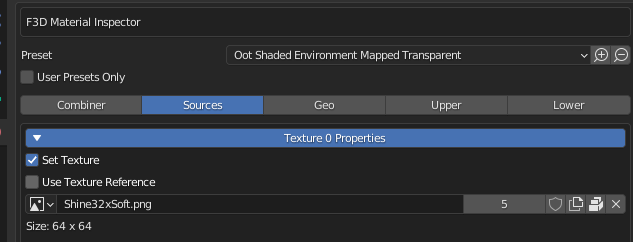
Shine texture
This is the texture used in this tutorial. A soft radial gradient with alpha works well for this effect.

3. Adjust the Color Combiner
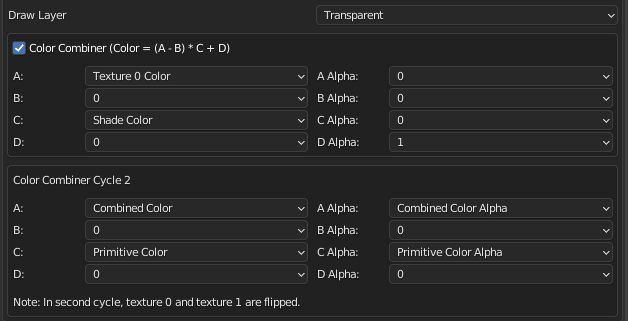
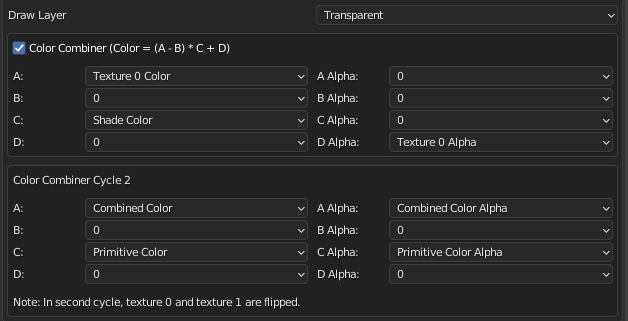
In the Color Combiner, change Cycle 1 D Alpha from 1 to Texture 0 Alpha.
4. Set the render mode
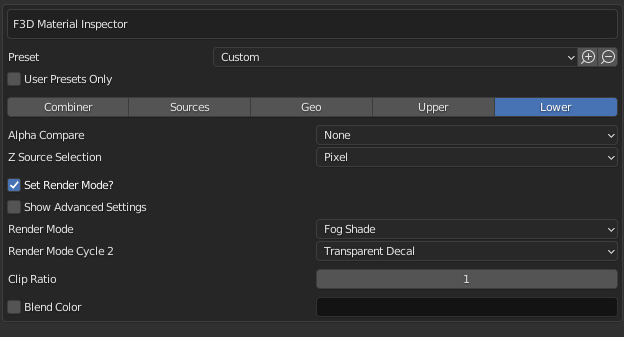
In the lower settings (make sure Show Simplified UI is disabled), change Render Mode Cycle 2 to Transparent Decal.