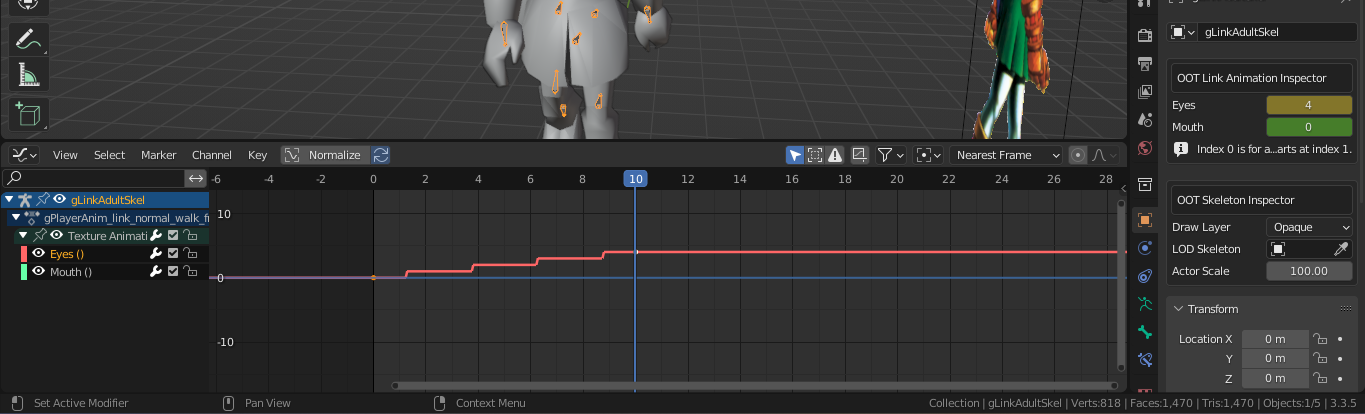
Flipbook Animations in the Graph Editor
This guide explains how to expose flipbook (expression) parameters in Blender's Graph Editor so you can keyframe and animate them for custom animations — useful for animations that don't have facial expressions set up to begin with.
Steps
1. Add keyframes for the expression parameters
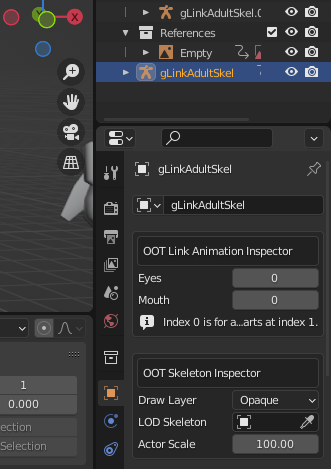
Make sure you are on frame 0, go to the Object Properties tab, and have your skeleton selected.
Hover over the Eyes and Mouth parameters and press I on each to add a keyframe for both.
2. Open the Graph Editor
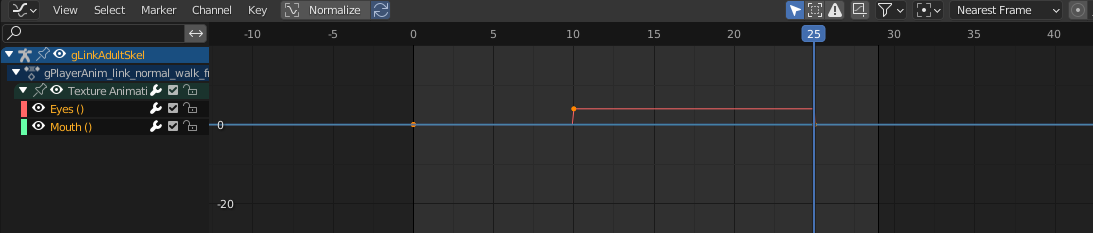
Switch to the Graph Editor. You should now see the two parameters listed.
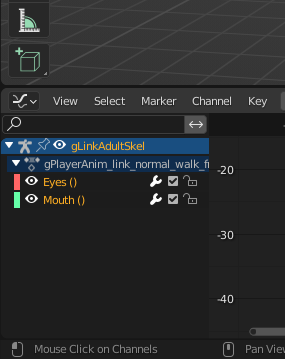
3. Group the channels
Select both channels, then right-click and choose to group them.
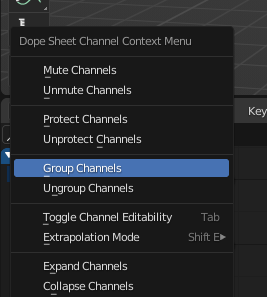
4. Name the group
Name the group Texture Animations.
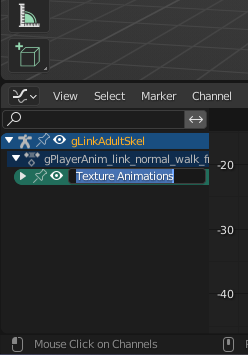
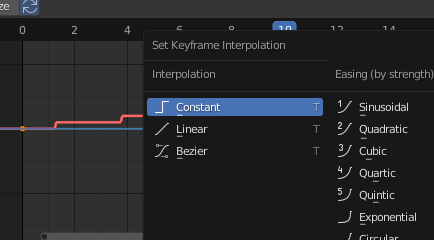
5. Set interpolation to Constant
The interpolation will be wrong by default — flipbooks switch frames instantly, not gradually. Press A to select all keyframes, then press T and select Constant.